External Offers Widget
AIR MILES® Offers Carousel: Terms of Use Agreement and Integration Guide
Better engage your customers by displaying relevant AIR MILES® Offers directly on your mobile app or website. The AIR MILES® Offers Carousel will deliver Mass offers through an unauthenticated flow as well as Mass and Targeted offers through an authenticated flow. This documentation will guide you through the process of successfully integrating the widget and provide information on Partner onboarding, adding offers, and customizing the widget’s CSS style.
AIR MILES® Offers Carousel: Terms of Use
AIR MILES Loyalty Inc. (“AIR MILES”, “we”, “us”, “our”) provides an offer widget (known as the AIR MILES® Offers Carousel, the “Offer Widget”) that you can place on your website which allows visitors to your website to access content related to the AIR MILES® Reward Program and Partner Offers originating from our Offer API (Application Programming Interface) via the Offer Widget.
These terms of use (“Terms of Use”), together with the Integration Guide, govern your use of the Offer Widget. Only legal entities are entitled to integrate and use the Offer Widget. As the person entering into these Terms of Use on behalf of a company or other legal entity, you represent that you have authority to bind the entity to these Terms of Use. The terms “you” and “your” refer to you, as an authorized user, and that entity.
By downloading or using the Offer Widget, you accept and are bound by these Terms of Use. These Terms of Use are in addition to any other agreement any of you may have with us. We reserve the right to change these Terms of Use at any time and will make best efforts to provide you with reasonable notice. Continued use of the Offer Widget after such changes are posted shall constitute acceptance of any such changes.
Widget and Content
You agree that the Offer Widget may display content, such as AIR MILES logos, search boxes that link to information located on our website, advertising the AIR MILES Reward Program, and advertising for your AIR MILES Offers (the “Widget Content”).
The Offer Widget includes the Widget Content, as well as all software files or images incorporated in, or generated by, the Offer Widget and any and all data and HTML embedded code that accompanies the Offer Widget, and any upgrades, enhancements or modifications to such software and code. AIR MILES retains all ownership and other rights in the Offer Widget and the Widget Content, and in the AIR MILES logos and trademarks.
License
Subject to your compliance with these Terms of Use and the Integration Guide, AIR MILES hereby grants you a non-exclusive, non-transferable, non-sublicensable, revocable license to use and display the Offer Widget on your website as permitted by these Terms of Use.
You shall not:
- sell, rent, sub-license or assign the Offer Widget,
- use the Offer Widget for any other purpose than set forth in these Terms of Use and the Integration Guide, or
- modify, adapt, reverse engineer, decompile or disassemble the Offer Widget.
Link to Content Pages
You may not display the Offer Widget in a manner that does not permit successful linking to, redirection to or delivery of the Widget Content. You may not insert any intermediate page, splash page or other content between the Offer Widget and the applicable Widget Content.
Use of Cookies
The Offer Widget uses three cookies:
- Strictly Necessary (2 cookies): Required for user authentication and basic site functionality. Always enabled and do not store personally identifiable information.
- Performance (1 cookie): Used to analyze site usage and improve performance. Aggregated data only. If disabled, the Offer Widget will not track usage.
Compliance with Laws
You shall:
- comply with all laws and regulations, including privacy laws, applicable to your website, including use of the Offer Widget;
- provide users with notice of third-party cookies and obtain consent where required.
No Warranty
THE OFFER WIDGET IS PROVIDED ON AN “AS IS” BASIS, WITHOUT WARRANTIES OF ANY KIND, EXPRESS, IMPLIED OR STATUTORY, INCLUDING WARRANTIES OF ACCURACY, MERCHANTABILITY, FITNESS FOR A PARTICULAR PURPOSE, OR NON-INFRINGEMENT.
AIR MILES DISCLAIMS ANY WARRANTIES REGARDING SECURITY, RELIABILITY, TIMELINESS, AVAILABILITY AND PERFORMANCE OF THE OFFER WIDGET. YOU ARE SOLELY RESPONSIBLE FOR ANY DIRECT OR INDIRECT DAMAGES RESULTING FROM INTEGRATION OR USE.
Termination
You may terminate this license at any time by ceasing to use the Offer Widget and deleting all copies.
AIR MILES may restrict, suspend or terminate the Offer Widget, or revoke the license, at any time without liability.
Governing Law
These Terms of Use are governed by the laws of the Province of Ontario and applicable federal laws of Canada.
Parties agree to the exclusive jurisdiction of courts located in Ontario.
AIR MILES® Offers Carousel: Integration Guide
Prerequisite
| Required Action | Responsibility |
|---|---|
| Whitelist Partner Domain • The Partner’s domain needs to be whitelisted to enable Cross-Origin Resource Sharing (CORS), GET, and PUT requests. |
• AIR MILES: Offer Domain |
| Setup for Auth0 (Partner access to Authenticated flow) • Client ID: The partner needs to provide a Client ID to be used for authentication purposes • Auth0 Domain: The partner needs to provide the domain associated with their Auth0 account |
• AIR MILES: Collector Domain |
| Setup for Auth0 (User navigation post login/logoff) • The Partner needs to provide a callback URL and logout URL to set up the Auth0 app. This URL will be used for authentication purposes to return the user to the partner page where the Offer Widget was embedded • If the widget is to be embedded on multiple pages of a Partner site, each unique URL is required for whitelisting |
• AIR MILES: Collector Domain • Partner |
| Exclusion List • If the Partner wants to exclude offers from other Partners being displayed in their instance of the widget, the integrating Partner must provide the exclusion list |
• Partner |
| Partner Filter List • If the Partner wants to filter offers to include only specific Partners in their instance of the widget, this can be handled with the properties using partnerId • The Partner must indicate which Partners they want to include and AIR MILES will provide the partnerID |
• Partner • AIR MILES |
Integration Options
Partners have two options to use the web component: package or script tag.
If the Partner chooses the package option with npm, they need to set up a token to access npm.
- Script Tag Setup: Include the necessary script tag in your HTML file to load the
am-offers-widgetcomponent without package management. - NPM Setup: Install the
@loyaltyone-am/external-offers-widgetpackage using npm for easy integration with package management.
Choose the setup strategy that suits your needs. You can then customize the component using the provided configurations to match your specific requirements.
Setup with <script> tag
To use the am-offers-widget component, include the script tag with the type="module" attribute in the <head> section of your file:
<script type="module" src="esm.js"></script>
Once the script is included, you can use the am-offers-widget component in your project, whether it’s in your file, JSX, HTML, or
any other suitable location. To add the am-offers-widget component to your HTML code, simply include the following snippet:
<am-offers-widget
  egion="ON"
/>
Setup with NPM
To use the @loyaltyone-am/external-offers-widget component in your project with npm, follow the steps below:
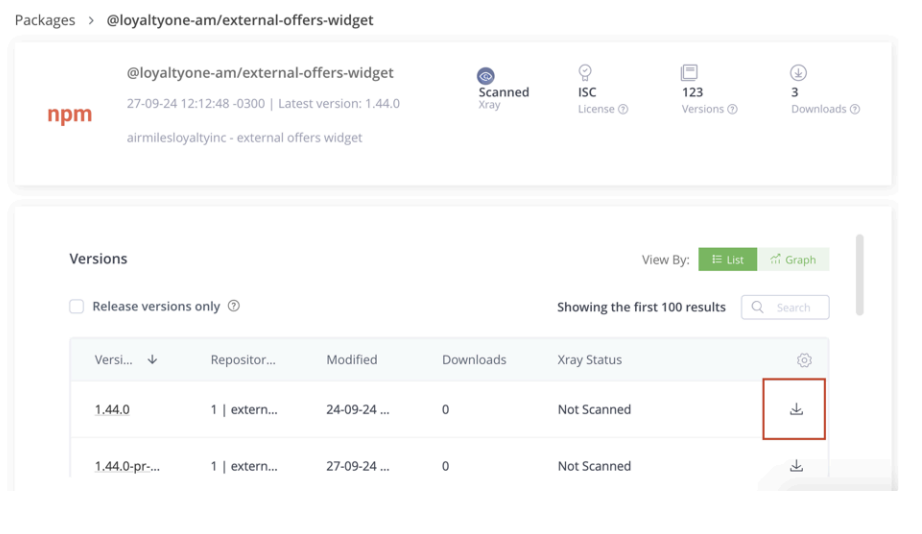
- Download the Package
Navigate to the JFrog Artifactory where the@loyaltyone-am/external-offers-widgetpackage is hosted.
Click the Download button for the desired version of the package (e.g.,external-offers-widget-1.44.0.tgz).
-
Move the Downloaded File
After the download is complete, locate the.tgzfile (e.g.,external-offers-widget-1.44.0.tgz) in your downloads folder.
Move this file to the root directory of your project. -
Install the Package
Open your terminal or command prompt.
Navigate to your project root directory if you are not already there.
Run the following command to install the package:
npm install external-offers-widget-1.44.0.tgz
- Verify Installation
After the installation completes, you can verify that the package is listed in yournode_modulesdirectory and in yourpackage.jsonfile.
Once the installation is complete, you can use the component in your page by adding the following code:
<am-offers-widget
  fetch-url='https://cdn.airmilesapis.ca/offers'
  partner='all'
/>
Properties for am-offers-widget Component
The am-offers-widget component provides various properties that allow you to customize its behaviour and appearance.
By passing different values to these properties, you can tailor the component to suit your specific needs.
| Attribute | Description | Type | Default |
|---|---|---|---|
authentication-domain |
The domain for AUTH0 authentication Provided by AIR MILES® team |
string | undefined |
button-bg-colour |
(optional) Background color for buttons and navigation arrows | string | #1f68da |
button-bg-hover-colour |
(optional) Background color for buttons and navigation arrows on hover | string | #e9fc88 |
button-content-colour |
(optional) Text color for buttons and interactive elements | string | #fff |
button-content-hover-colour |
(optional) Text color for elements on hover | string | #080e1a |
client-id |
The client ID for AUTH0 authentication (provided by Collector Domain) |
string | undefined |
cta-font |
(optional) The font for call-to-action elements | string | "Montserrat", sans-serif |
exclusion-partner-list |
(optional) filter – List of partner id’s to exclude | string | undefined |
exclusion-region-list |
(optional) filter – A comma-separated list of region codes that should be excluded from the region selector dropdown | string | undefined |
fetch-url |
(optional) The URL for fetching offers ⚠️ Changing this parameter can result in the widget malfunctioning, as it points to the API of the AM company. It is crucial to understand that any modifications to this URL may disrupt the intended functionality. |
string | https://cdn.airmilesapis.ca/offers |
fetch-options |
Value to be sent in the x-origin-client header of the API request. Required format: A string in the format value1:value2:value3 |
string | external:offers:widget:get |
headline |
(optional) The headline text in English | string | AIR MILES® offers you’ll love |
headline-fr |
(optional) The headline text in French | string | Des offres AIR MILESᴹᴰ que vous aimerez |
headline-text-colour |
(optional) Text color for the widget content | string | #1c2d3f |
link-text-colour |
(optional) Color for links in the widget | string | #1f68da |
number-of-offers |
(optional) The number of offers to be requested from the API and displayed in the carousel. | string | '20' |
page-path |
Defines the name of the current path where the component is located. If not provided, it defaults to the URL path, converted to kebab-case. |
string | It defaults to the URL path, converted to kebab-case. |
partner |
(optional) The partner for filtering offers Value = all Will display offers for all partners. Value = partnerID, partnerID, partnerID Will display offers for the partnerIDs entered |
string | 'all' |
partner-name |
Name of the partner deploying the component, used for analytics. If not provided, it defaults to the second-level domain (SLD) of the URL (e.g., airmiles for airmiles.ca) |
string | (none shown in image — assumed blank) |
primary-font |
(optional) The primary font for the widget, applies for titles and headlines | string | "Montserrat", sans-serif |
region |
The region for the offers | string | 'ON' |
secondary-font |
(optional) The secondary font for the widget, applies for subheading and descriptive texts | string | undefined |
sort-partner-id |
(optional) allows users to specify a partner ID that will be used to prioritize offers associated with that partner in the results displayed | string | undefined |
subheading |
(optional) The subheading text in English | string | Get more Miles from these great brands. |
subheading-fr |
(optional) The subheading text in French | string | Obtenez plus de milles avec ces marques formidables. |
Example Usage
Example of using the am-offers-widget component with the provided properties:
<script type="module" src="URL"></script>

<am-offers-widget
  fetch-url="https://dev.cdn.airmilesapis.ca/offers"
  fetch-options="carousel:offers:postman"
  region="ON"
  partner="all"
  number-of-offers="30"
  language="en"
></am-offers-widget>
Language Headline and Subheading Properties
The widget reads the lang attribute from the browser’s <html> element to determine the user’s preferred language.
The accepted languages are ’en’ (English) and ‘fr’ (French).
If the detected language is ’en’ or ‘fr’, the content will be displayed in that language.
If the detected language is anything else, the content defaults to English.
This preferred language also affects the API request to retrieve offer copies in the specified language.
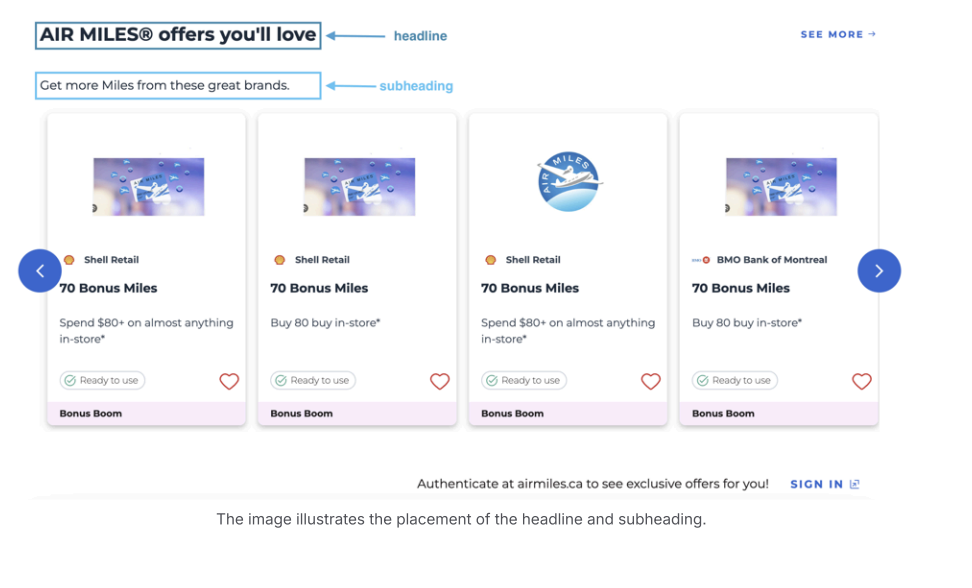
The Stencil component provides the following properties to set the headline and subheading text:
headline Property
The headline property of the Stencil component is used to set the headline text in English.
It is optional and defaults to: “AIR MILES® offers you’ll love”
subheading Property
The subheading property of the Stencil component is used to set the subheading text in English.
It is optional and defaults to: “Get more Miles from these great brands.”
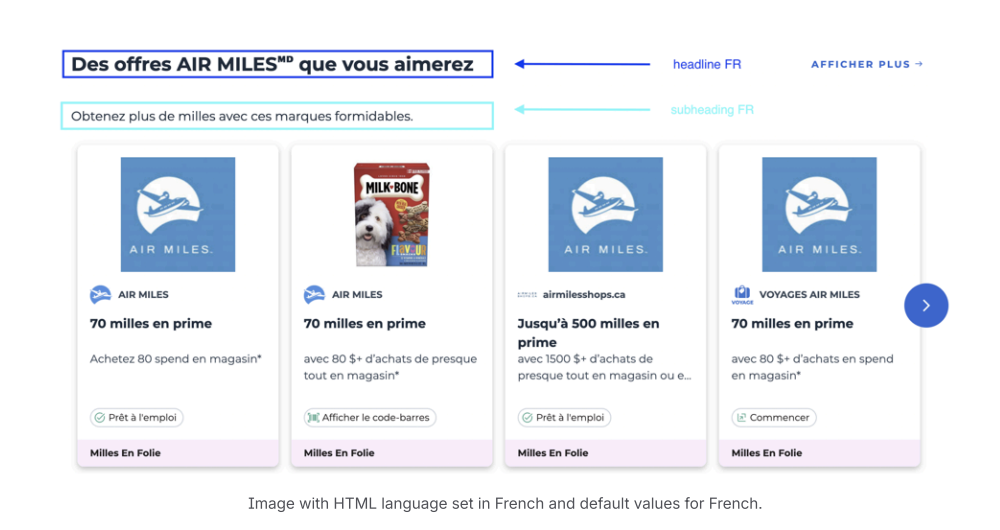
headline-fr Property
The headline-fr property sets the headline text in French.
It is optional and defaults to: “Des offres AIR MILES que vous aimerez.”
subheading-fr Property
The subheading-fr property sets the subheading text in French.
It is optional and defaults to: “Obtenez plus de milles avec ces marques formidables.”
Example Usage
Example of using the Stencil component with customized properties for both English and French languages:
<am-offers-widget
  fetch-url="https://uat.cdn.airmilesapis.ca/offers"
  region="ON"
  partner="all"
  number-of-offers="8"
  authentication-url="https://staging.airmilesshops.ca/api/oauth"
  headline="Custom Headline (English)"
  subheading="Custom Subheading (English)"
  headlineFr="Titre personnalisé (French)"
  subheadingFr="Sous-titre personnalisé (French)"
></am-offers-widget>
In this example, the headline and subheading properties are set to custom values for English language.
Additionally, the headlineFr and subheadingFr properties are set to custom values for French language.
The component will automatically select the appropriate language based on the HTML lang attribute and display the corresponding headline and subheading text.
English Example
Example of using the am-offers-widget component with customized properties:
<am-offers-widget
  fetch-url="https://cdn.airmilesapis.ca/offers"
  region="ON"
  partner="all"
  number-of-offers="8"
  authentication-url="https://staging.airmilesshops.ca/api/oauth"
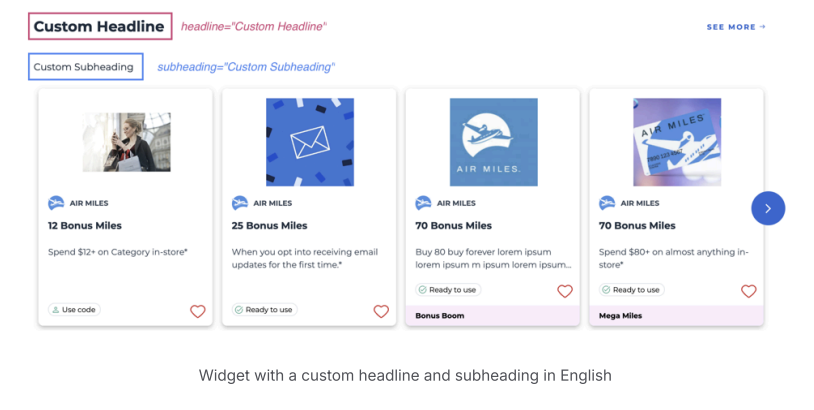
  headline="Custom Headline"
  subheading="Custom Subheading"
/>
In this example, the component will display the custom headline and subheading in English.
Customize Headline and Subheading Properties when users are logged in
logged-in-headline Property
The logged-in-headline property of the Stencil component is used to set a customizable headline text in English when users are logged in.
It is an optional property that defaults to: “AIR MILES® offers you’ll love”
logged-in-subheading Property
The logged-in-subheading property of the Stencil component is used to set a customizable subheading text in English when users are logged in.
It is an optional property that defaults to: “Get more Miles from these great brands.”
Logged in headline and subheading English Example
Example of using the am-offers-widget component with customized properties:
<am-offers-widget
  fetch-url="https://cdn.airmilesapis.ca/offers"
  number-of-offers="60"
  headline="AIR MILES Bonus Builder"
  subheading="Sign in below!"
  sort-partner-id=""
  partner=""
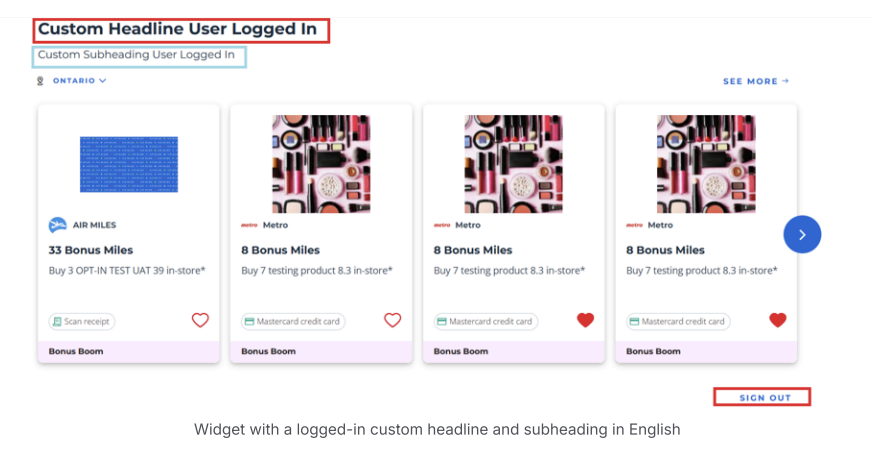
  logged-in-headline="Custom Headline User Logged In"
  logged-in-subheading="Custom Subheading User Logged In"
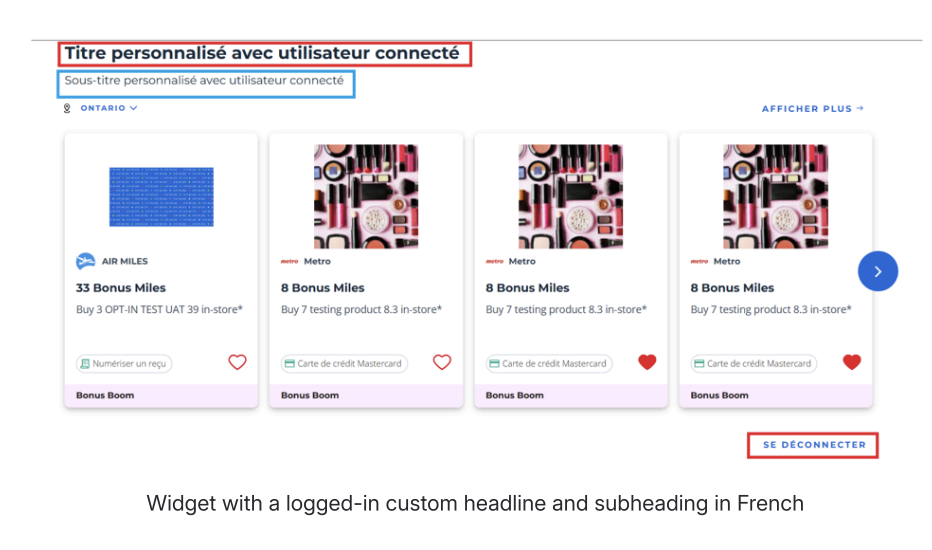
  logged-in-headline-fr="Titre personnalisé avec utilisateur connecté"
  logged-in-subheading-fr="Sous-titre personnalisé avec utilisateur connecté"
/>
In this example, the component will display the logged-in custom headline and subheading in English.
logged-in-headline-fr Property
The logged-in-headline-fr property of the Stencil component is used to set a customizable headline text in French when users are logged in.
It is an optional property that defaults to: “Des offres AIR MILES que vous aimerez.”
logged-in-subheading-fr Property
The logged-in-subheading-fr property of the Stencil component is used to set a customizable subheading text in French when users are logged in.
It is an optional property that defaults to: “Obtenez plus de milles avec ces marques formidables.”
Example Usage
Example of using the Stencil component with customized properties for both English and French languages:
<am-offers-widget
  fetch-url="https://cdn.airmilesapis.ca/offers"
  number-of-offers="60"
  headline="AIR MILES Bonus Builder"
  subheading="Sign in below!"
  sort-partner-id=""
  partner=""
  logged-in-headline="Custom Headline User Logged In"
  logged-in-subheading="Custom Subheading User Logged In"
  logged-in-headline-fr="Titre personnalisé avec utilisateur connecté"
  logged-in-subheading-fr="Sous-titre personnalisé avec utilisateur connecté"
/>
In this example, the logged-in-headline and logged-in-subheading properties are set to custom values for English language.
Additionally, the logged-in-headline-fr and logged-in-subheading-fr properties are set to custom values for the French language.
The component will automatically select the appropriate language based on the HTML lang attribute and display the customized headline and subheading text.
CSS Customization
The am-offers-widget component offers a range of optional properties that allow you to customize the appearance of the widget.
With these properties, you can define the main colour, button text colour, link colour, text colour, hover effects, and fonts used within the widget.
Customizing these aspects helps you create a visually cohesive design that aligns with your branding and style preferences.
While these properties are optional, they provide a convenient way to personalize the am-offers-widget component to suit your specific design needs.
Customization properties
- button-bg-colour (optional): Sets the background color for buttons and navigation arrows.
- button-content-colour (optional): Sets the text color for buttons and interactive elements.
- button-bg-hover-colour (optional): Sets the background color for buttons and navigation arrows on hover state.
- button-content-hover-colour (optional): Sets the text color for buttons and interactive elements on hover state.
- link-text-colour (optional): Sets the colour for links in the widget.
- headline-text-colour (optional): Sets the text colour for the widget headings.
- primaryFont (optional): Sets the primary font for the widget.
- secondaryFont (optional): Sets the secondary font for the widget.
- ctaFont (optional): Sets the font for call-to-action elements in the widget.
These properties are all optional, meaning you can choose to provide values for them or not.
If not specified, default values will be used for each property.
Example:
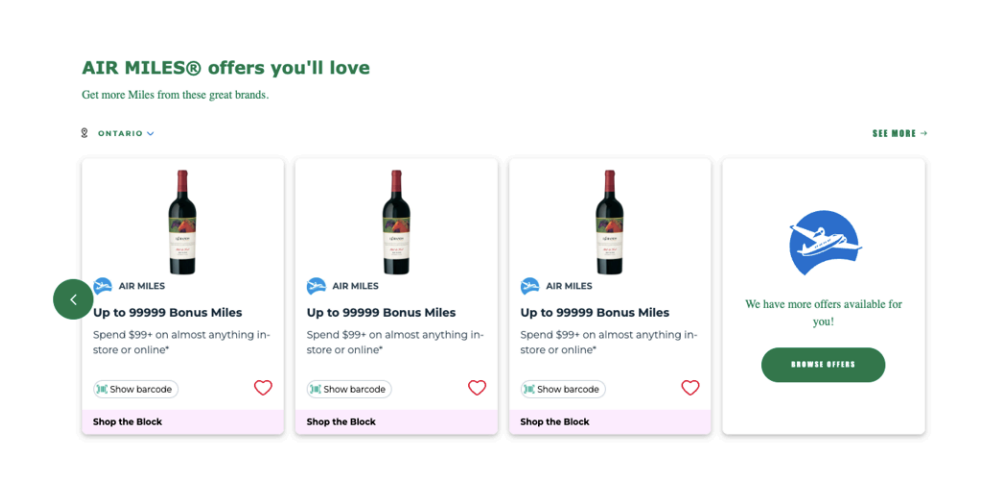
<am-offers-widget
  button-bg-colour="#007D47"
  button-content-colour="#fff"
  link-text-colour="#007D47"
  headline-text-colour="#007D47"
  button-bg-hover-colour="#E9FC88"
  button-bg-content-colour="#fff"
  primary-font="Verdana"
  secondary-font="Calibri"
  cta-font="Impact"
></am-offers-widget>
Example with the above customization:
Customizing the am-offers-widget: Property Examples
In this section, we will explore various properties that can be adjusted to customize the appearance and behavior of the am-offers-widget.
By modifying these properties, you can tailor the widget to better fit your brand’s aesthetics and enhance user engagement.
Below, you will find examples of how each property can be changed, along with the expected visual outcomes.
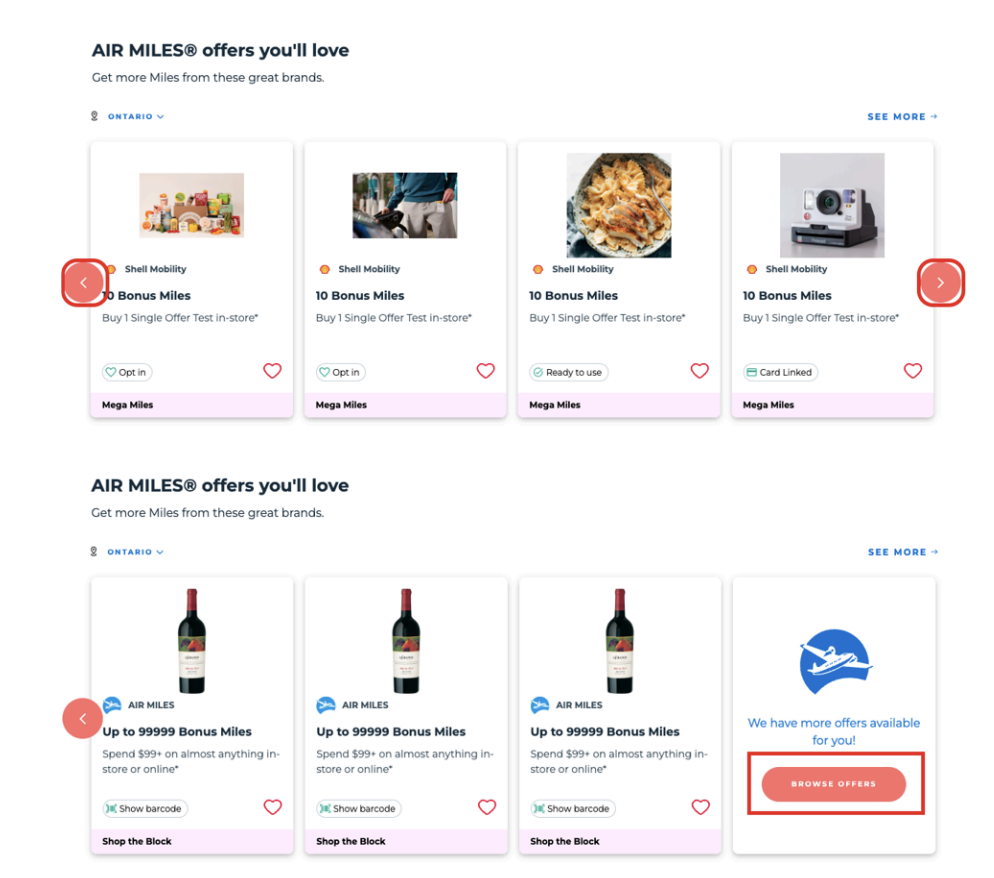
button-bg-colour
The button-bg-colour property changes the colour of the navigation arrows.
<am-offers-widget button-bg-colour="#f07167" />
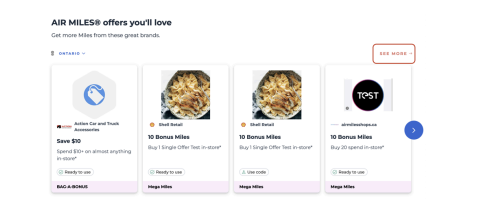
link-text-colour
The link-text-colour property changes the colour of the “See More” link.
<am-offers-widget link-text-colour="#f07167" />
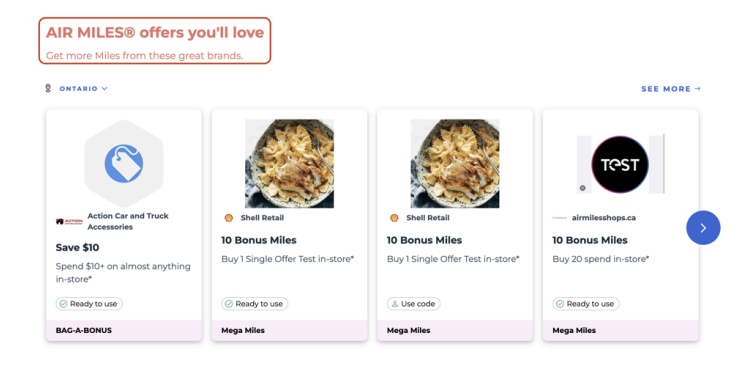
headline-text-colour
The headline-text-colour property changes the colour of the heading and subheading.
<am-offers-widget headline-text-colour="#f07167" />
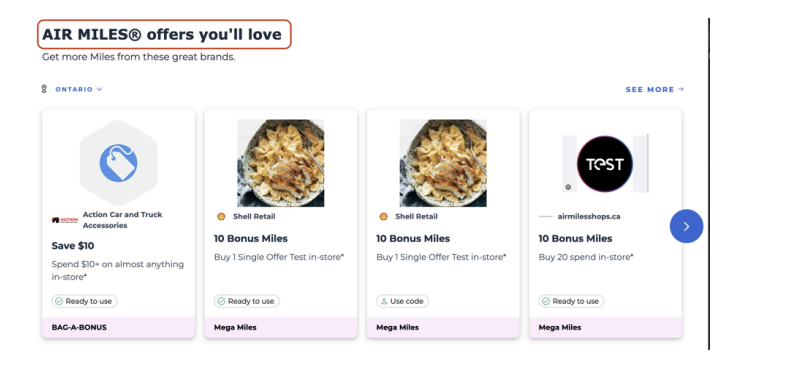
primary-font
The primary-font property changes the font of the heading.
Note that this will only work if the end user has the font installed.
<am-offers-widget primary-font="Verdana" />
secondary-font
The secondary-font property changes the font of the subheading.
Note that this will only work if the end user has the font installed.
<am-offers-widget secondary-font="Impact" />
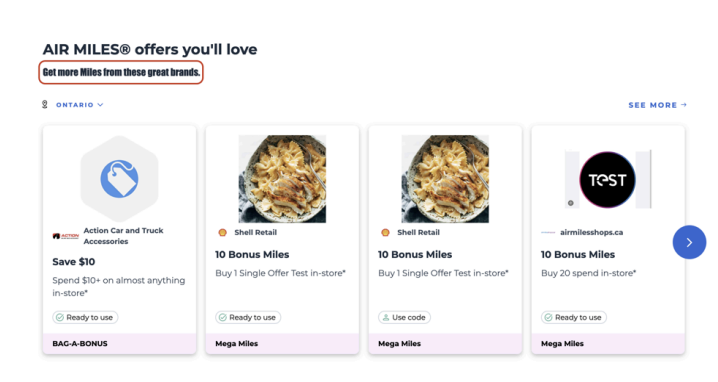
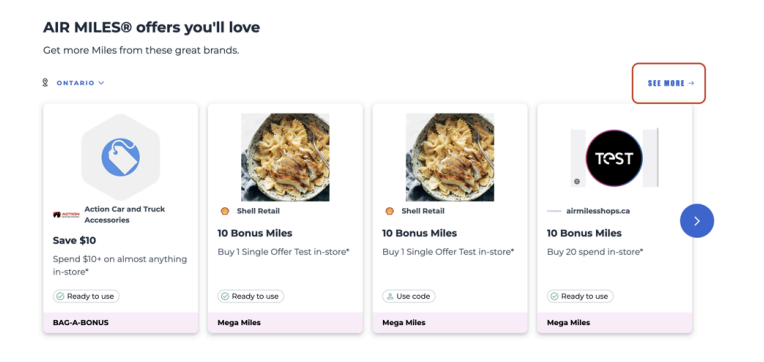
cta-font
The cta-font property changes the font of the “See More” link.
Note that this will only work if the end user has the font installed.
<am-offers-widget cta-font="Impact" />
Possible Errors for <am-offers-widget/>
The <am-offers-widget/> web component has specific requirements for its attributes.
Improper configurations can lead to error messages being displayed.
Below are the common error scenarios related to its attributes, along with a general error message that may also appear under certain circumstances.
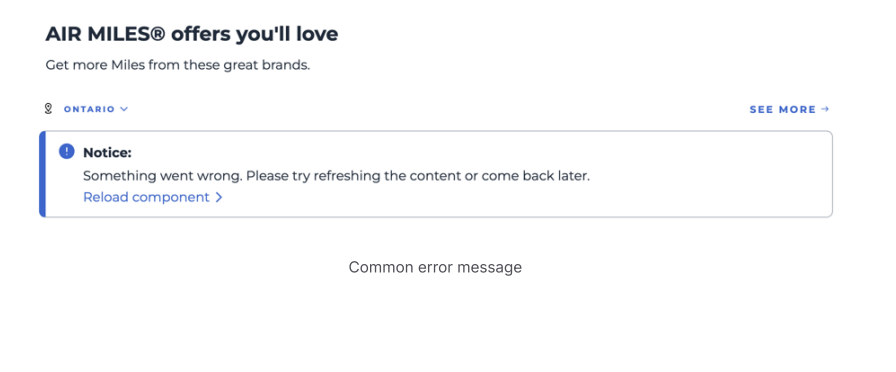
Common Error Message
The following error message may be displayed for the following reasons:
- If the API key has not been whitelisted by the Offer API for authenticated flows
- If any of the attributes are incorrectly configured
- If there are no offers available
- Internet connectivity issues
1. Invalid region Value
The region attribute specifies the geographical region for which the offers should be displayed.
It accepts only valid Canadian region values.
If an invalid region is provided, the common error message will be shown.
Example of Incorrect Configuration:
<am-offers-widget region="XX" />
General Error Message:
If the region is invalid, the common error message will be displayed.
2. Errors in exclusion-partner-list
The exclusion-partner-list attribute is used to filter out offers from specific partners by excluding them from the API response.
Each partner ID should be separated by a comma.
If one or more partner IDs are incorrectly configured, the common error message will be displayed.
Examples of Incorrect Configuration:
<am-offers-widget exclusion-partner-list="XXX" />
<am-offers-widget exclusion-partner-list="3267588b-791d-49bc-a321-d85d5f818480, XXX" />
Example of Correct Configuration:
<am-offers-widget exclusion-partner-list="3267588b-791d-49bc-a321-d85d5f818480" />
General Error Message:
If the exclusion list is invalid, the common error message will be displayed.
3. Errors in partner
The partner attribute indicates which partners’ offers should be displayed.
It filters the offers to show only those from the specified partner IDs (comma-separated).
If one or more partner IDs are incorrect, the common error message will be displayed.
Example of Incorrect Configuration:
<am-offers-widget partner="XXX" />
Examples of Correct Configuration:
<am-offers-widget />
<am-offers-widget partner="3267588b-791d-49bc-a321-d85d5f818480" />
General Error Message:
If the partner ID(s) are invalid, the common error message will be displayed.
4. Invalid number-of-offers
The number-of-offers attribute defines the maximum number of offers to be displayed.
If this number exceeds 96, the common error message may be shown.
It is recommended to keep this number below 96 to avoid potential issues.
Example of Excessive Configuration:
<am-offers-widget number-of-offers="100" />
By ensuring that the attributes of <am-offers-widget/> are configured correctly, users can minimize the chances of encountering
the common error message. However, even with correct configurations, this error message may still appear due to other factors such as
lack of offers, internet connectivity issues, or API whitelisting requirements.
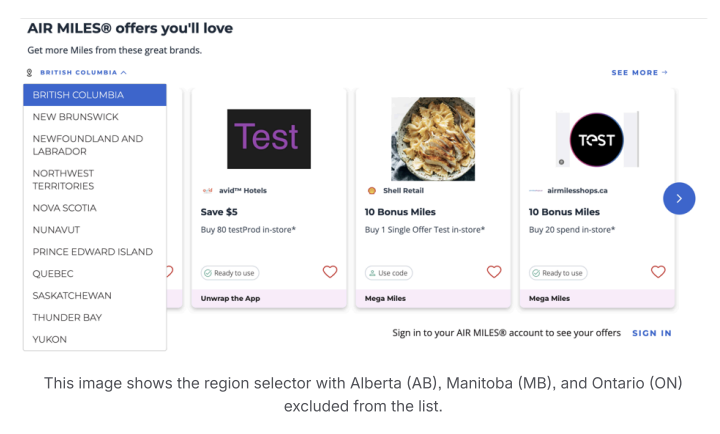
exclusion-region-list property
Property Definition
exclusion-region-list
Type: String
Description: A comma-separated list of region codes that should be excluded from the region selector dropdown.
Example Values: "AB, ON, MB"
Usage
To utilize the exclusion-region-list property, simply add it to the <am-offers-widget> component as shown in the following example:
<am-offers-widget exclusion-region-list="AB, ON, MB" />
In this example, offers from Alberta (AB), Ontario (ON), and Manitoba (MB) will be excluded from the selector.
Users will not see these regions as options when interacting with the widget.
sort-partner-id property
Property Definition
sort-partner-id
Type: String
Description:
A string representing the partner ID that will be used to prioritize offers associated with that partner in the results displayed by the widget.
When a valid partner ID is provided, offers linked to that partner will be prioritized, followed by the existing sorting criteria
(either collectorrelevance or regionrelevance).
Example Value:
"6367893d-fbf9-458e-8712-d21234da3614"
Format regex:
"/^[0-9a-f]{8}-[0-9a-f]{4}-[1-5][0-9a-f]{3}-[89ab][0-9a-f]{3}-[0-9a-f]{12}$/i"
Usage
To utilize the sort-partner-id property, simply add it to the <am-offers-widget> component as shown in the following example:
<am-offers-widget sort-partner-id="6367893d-fbf9-458e-8712-d21234da3614" />
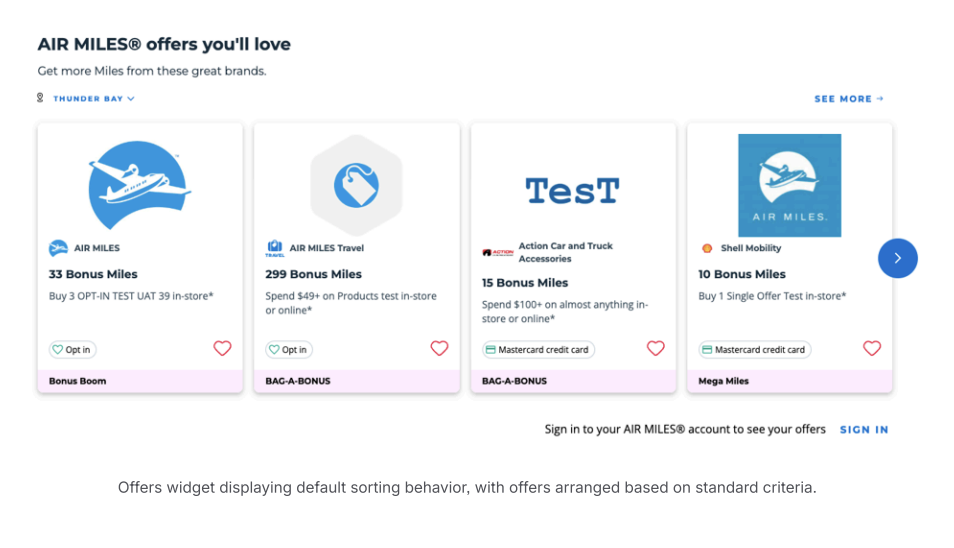
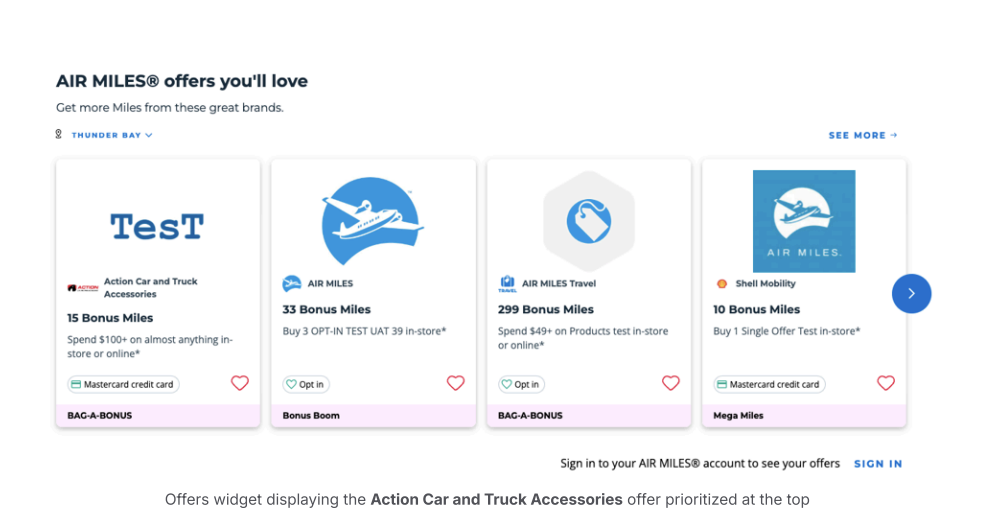
In this example, offers associated with the partner ID for Action Car and Truck Accessories
("6367893d-fbf9-458e-8712-d21234da3614")
will be prioritized in the widget, as shown in the image.
Normal Behavior Without sort-partner-id
If the sort-partner-id is not specified or is invalid (e.g., "k80e694d-f9b6f61bd31b"),
the widget will default to its existing sorting behavior.
For example:
In the referenced image, Action Car and Truck Accessories appears in third position when no sort-partner-id is provided.